我用空格键实现了前所未有的文件预览功能
DiebugI gave Windows a spacebar preview like I never had before
来源: makeuseof | 原文链接: https://www.makeuseof.com/quicklook-windows-spacebar-preview/

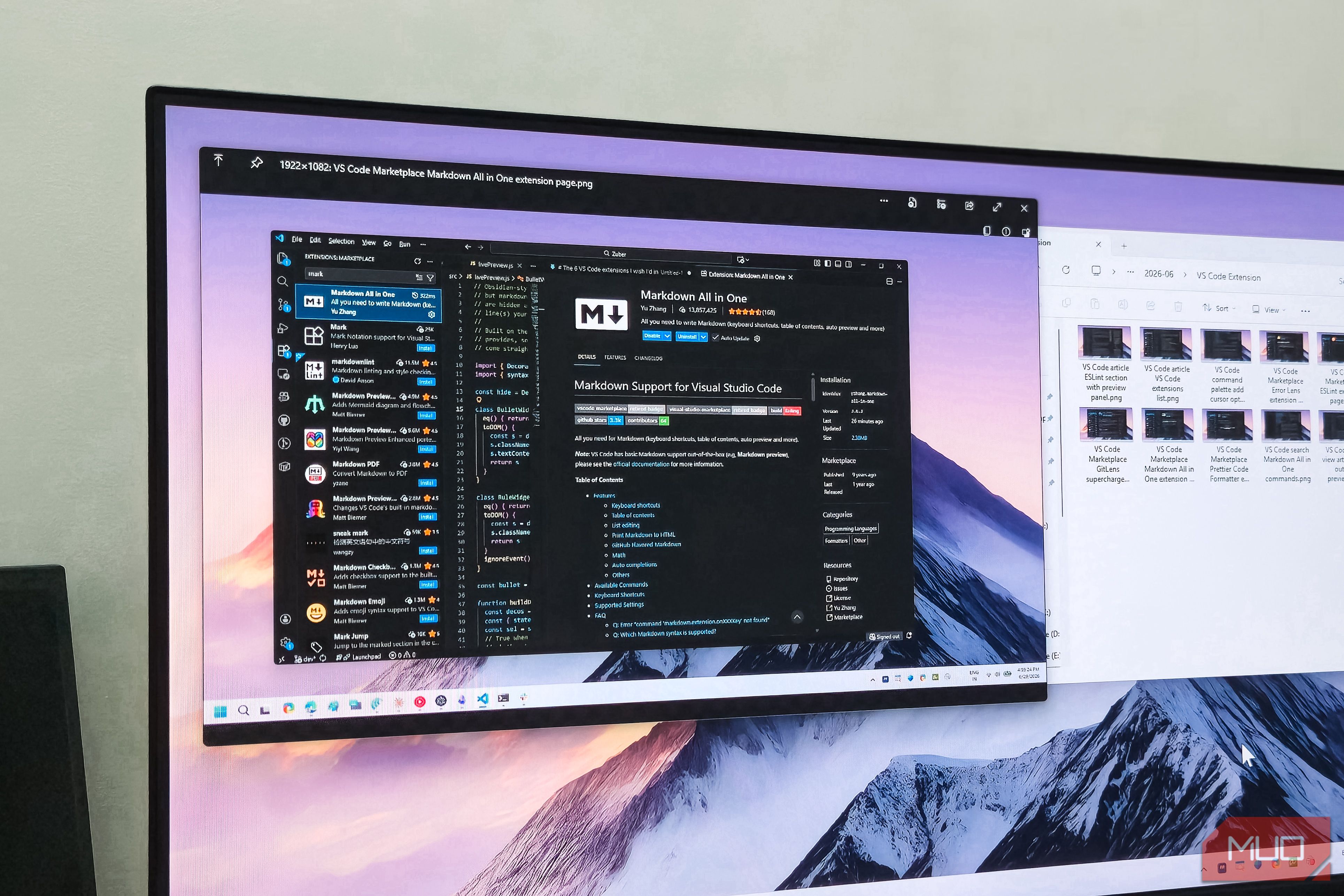
I gave Windows a spacebar preview like I never had before Tashreef Shareef / MakeUseOf Credit: Tashreef Shareef / MakeUseOf By Tashreef Shareef Published Jun 29, 2026, 3:31 PM EDT Tashreef’s fascination with consumer technology began in the school library when he stumbled upon a tech magazine, CHIP, which ultimately inspired him to pursue a degree in Computer Science. Since 2012, Tashreef has professionally authored over a thousand how-to articles, contributing to Windows Report and How-To Geek. He currently focuses on Microsoft Windows content at MakeUseOf, which he has been using since 2007. With hands-on experience building websites and technology blogs, he brings practical developer insights to his technical writing. You can view his complete work portfolio at itashreef.com. You might also stumble upon his short how-to video explainers, simplifying complex topics. Beyond writing, Tashreef enjoys creating short explainer videos, gaming, and exploring animated shows. Sign in to your MakeUseOf account Add Us Add on Google Preferred Source Google News Like Like follow Follow followed Followed Thread Log in Here is a fact-based summary of the story contents: Try something different: Show me the facts Explain it like I’m 5 Give me a lighthearted recap I work with images and text files every day. I often need to compare two images to see which one I should use for my featured images, which ones to omit, and quickly preview my Markdown notes without opening them in a dedicated app like Obsidian or the Photos app. So, I gave Windows a spacebar preview with QuickLook. This open-source app lets you preview any file instantly by pressing the space bar. It’s fast, free, and works with images, text files, videos, and code without launching a single app. ## QuickLook brings Mac’s quick previews to Windows ### Select a file, hit the spacebar, and preview it instantly image credit - self captured (Tashreef Shareef) - No Attribution Required If you have ever used macOS, you’re familiar with Quick Look, which lets you select any file inside Finder and preview it by pressing the spacebar. QuickLook for Windows does something similar, except it’s a third-party app that you can install and use for free. Windows does have a Preview Pane built into File Explorer, but it takes up permanent screen space and only works with a handful of file types. Microsoft PowerToys also includes a Peek feature that offers enhanced preview capabilities, but it’s limited to common formats and doesn’t support the hundreds of file types that QuickLook can handle through its plugin system. QuickLook’s interface is clean and modern, matching the Windows design language with Fluent styling and HiDPI support. After installation, the first thing you’ll notice is how the preview window adapts to the file’s orientation. If you preview a wide landscape image, the window opens in a normal wide format. Preview a mobile screenshot, and it switches to portrait mode so the image doesn’t look awkward
翻译提示
本文已自动抓取,建议人工润色后发布。